
How to Choose a Website Template: A Guide For Design Selection

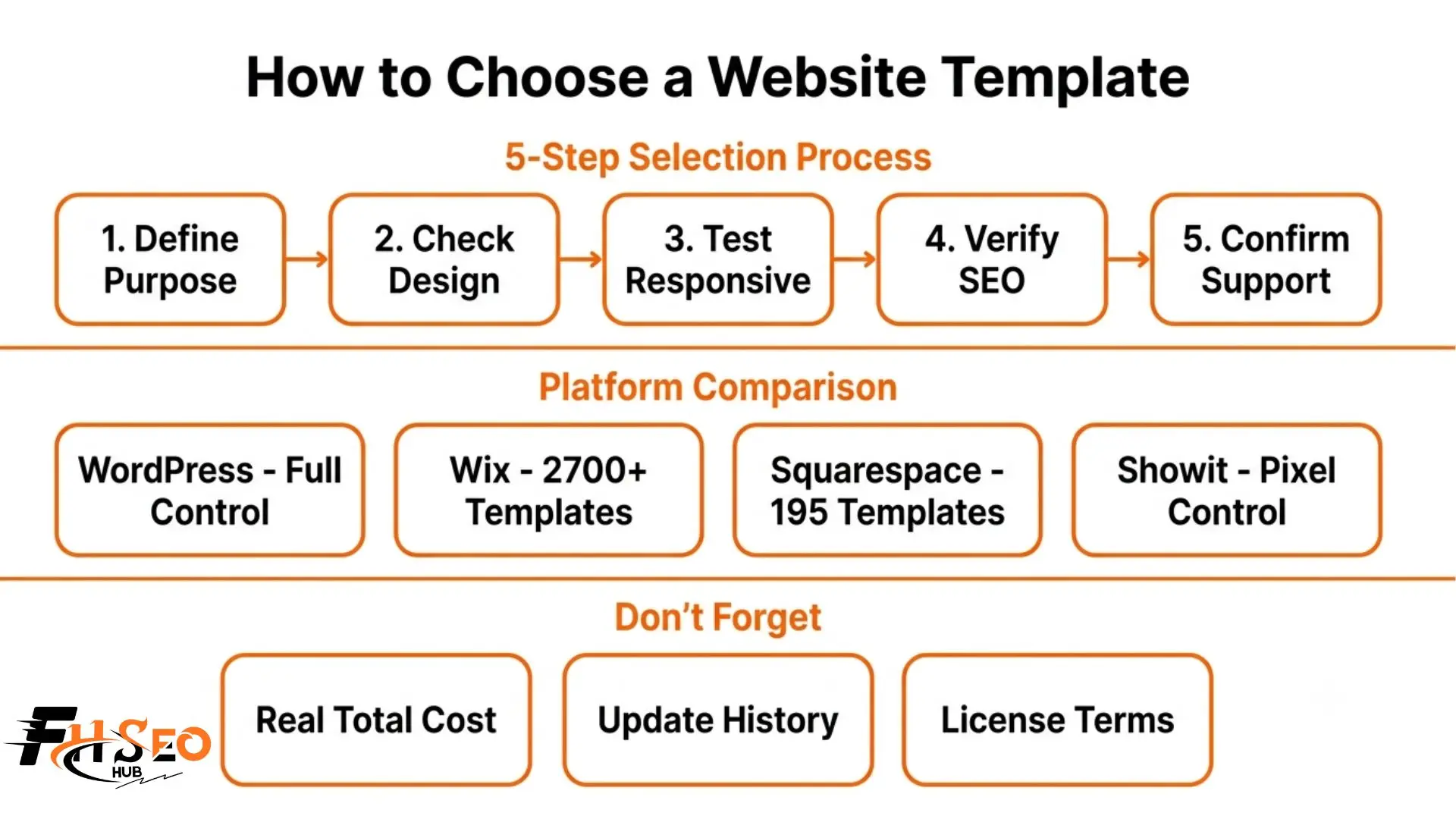
Choosing the right website template means matching a pre-designed layout to your actual purpose, then checking mobile responsiveness, customization options, and code quality before you commit. Most guides stop at “check if it’s mobile friendly” and call it done. That advice hasn’t changed in a decade.
What has actually changed is whether the underlying code gets read by AI search, whether the provider will still support their design in two years, and what it really costs once hosting and plugins get added. Here is the complete picture, including the parts most articles on this topic skip entirely.
What Is a Website Template?
A website template is a pre-designed layout that provides the structure, visuals, and functionality of a web page, letting you build a site without coding from scratch. It comes from a website builder or content management system and gets customized with your own colors, text, and images.
Think of it as the bones of a professional site. The structure already exists. Your job is filling it with your own brand instead of building the skeleton yourself.
What Is the Difference Between Static and Dynamic Options?
Static designs display the same fixed content to every visitor and work well for simple sites like portfolios. Dynamic designs adapt content automatically based on user interaction or database inputs, which suits blogs, ecommerce, and sites that need frequent updates without a full redesign.
If you plan to publish new content regularly, a dynamic option saves real time down the road. If your site rarely changes once it launches, static keeps things simple and fast.
What Is the Difference Between Using One of These and a Custom-Built Site?
A ready-made layout offers a starting point you customize quickly and affordably. Custom-built websites are built from the ground up by designers and developers, giving full control over functionality and design. Pre-designed options favor speed and budget. Custom builds favor unique features and complete creative freedom.
Most small businesses and solo creators never actually need a fully custom build. The gap between what a good pre-made option delivers and what custom coding adds has shrunk considerably in the last few years.
How Do You Choose the Right Website Template?
Start by defining your site’s purpose, then check mobile responsiveness, customization depth, clean SEO-friendly code, and compatibility with your content management system. Test the preview mode before buying, and confirm the provider’s update history and support quality.
What Design Elements Should You Check First?
Focus on homepage header layout, content width, logo placement, and navigation positioning. These elements shape first impressions more than color choices do, since 80 percent of websites use a horizontal top menu bar.
| Header Style | Best Fit |
| Static image header | Portfolios, restaurants, visual-first brands |
| Static header with content | Businesses needing a headline plus a call to action |
| Slideshow header with content | Multiple products or services to showcase |
| Video background | Brands wanting strong emotional impact |
Content width matters too. Full-width layouts suit visual, image-heavy sites. Boxed-width layouts suit businesses with dense written information that needs a contained, professional frame.
How Do You Know If a Design Is Fast Enough and SEO Friendly?
Check real performance before buying, not just marketing claims. Loading speed directly affects rankings and conversions, since a documented 17 percent conversion increase happens for every one-second improvement in load time. Look for clean code and confirm the responsive experience actually works, since 63.4 percent of internet users now browse primarily on mobile.
Does the Underlying Code Affect Whether AI Search Cites Your Site?
Yes. Clean, well-structured code helps both traditional search engines and AI-powered search systems understand and cite your content. A bloated, disorganized layout makes it harder for Google AI Overviews, ChatGPT, or Perplexity to extract clear information from your pages.
Should You Choose a Free or Paid Option?
Free versus paid trades cost for depth. Free options work for small projects but often lack deep customization and responsive support. Paid options typically offer better design quality, more frequent updates, and stronger security that protects your site long term.
How Do You Avoid Buying Something the Provider Stops Supporting?
Check the provider’s update history and gallery size before buying. A provider with dozens of designs and a visible changelog is far less likely to abandon support than one with a handful of listings and no update record. Read reviews specifically mentioning support responsiveness.
Do You Need a Multi-Page or One-Page Structure?
Choose a one-page layout if you have a single offer or simple message to communicate. Choose a multi-page structure if you need separate sections for services, a portfolio, and contact information. Layout complexity should match your actual content volume, not your aesthetic preference.
What Licensing Terms Should You Check for Client Work?
Before using any purchased design for client projects, confirm whether the license allows single-use or multi-use, and whether reuse across multiple client sites is permitted. Freelancers and agencies who skip this step risk violating terms without realizing it, sometimes discovering the problem only after a client complaint or a takedown notice arrives.
Most marketplaces spell this out clearly on the product page, but it is worth reading the full license page directly rather than assuming standard terms apply.
What Types Exist for Different Businesses?
Categories commonly include portfolio, ecommerce, blog, small business, professional, and personal designs. Each emphasizes different features. Portfolios prioritize galleries, ecommerce prioritizes product pages and checkout flow, and blogs prioritize content organization and readability.
| Category | Prioritizes |
| Portfolio | Image galleries, minimal text |
| Ecommerce | Product pages, checkout flow |
| Blog | Content organization, readability |
| Small business | Contact info, service pages |
| Professional | Credentials, resume-style layout |
| Personal | Flexible, identity-driven design |
What Does It Cost Once You Add Everything Up?
The sticker price is not the real cost. Add hosting through your builder or CMS, premium plugins, font licenses, and stock photo subscriptions, and the total often approaches what a modest custom build quote would run, especially once real customization work gets factored in.
A $60 layout can easily turn into $300 or more in the first year once hosting, a premium plugin for bookings or forms, and a couple of licensed fonts get added. Budget for the full stack, not just the initial purchase screen.
Which Platform Should You Choose?
WordPress suits users wanting maximum flexibility and plugin access. Squarespace and Wix offer polished galleries with strong drag-and-drop editors, Wix offering over 2,700 designs and Squarespace offering 195. Showit suits creative brands wanting pixel-level design freedom without full custom code.
| Platform | Best For |
| WordPress | Flexibility, plugins, full control |
| Wix | Large gallery (2,700+), AI builder tools |
| Squarespace | Polished design (195 options), Fluid Engine |
| Showit | Creative brands, pixel-level control |
| Weblium | AI-powered simple setup |
Final Thoughts
Picking the right website template comes down to matching structure to purpose, not just picking whatever looks best in a gallery preview. Check the code quality, confirm the provider actually supports what they sell, and add up the real cost before you commit. Get those three things right and the rest, the colors, the fonts, the finishing touches, all become the easy part.
FAQs
Define your website’s purpose first, then check mobile responsiveness, customization options, clean code, and compatibility with your content management system. Test the preview mode, confirm the provider’s support and update history, and match the design to your brand identity before committing. Skipping any one of these steps is usually what leads to regret a few months in.
Right click the page and select View Page Source or Inspect to look for theme names in the code, often visible in file paths or comments. Browser extensions built for this purpose can also identify the CMS and builder behind most sites automatically, saving you the manual digging if you just want a quick answer.
Not inherently. A properly built option with clean code and genuine mobile responsiveness supports strong search performance. Poorly coded, bloated designs can hurt speed and rankings. The design itself matters less than verifying its code quality and performance before you commit to it, since two templates that look identical can perform very differently under the hood.
Some are, but free versus paid usually differ in customization depth, support availability, and update frequency. Free options work for small, simple projects. Paid options typically offer better long-term reliability and security for growing businesses, plus access to support when something breaks and you need an answer quickly.
Yes, though switching designs can affect layout and require re-customization. Content generally transfers more easily than design elements. Choosing an option with straightforward compatibility and avoiding heavy platform-specific customization early on makes a future switch considerably less painful if your needs change as your business grows.


